

Link View - Free outbound links tester
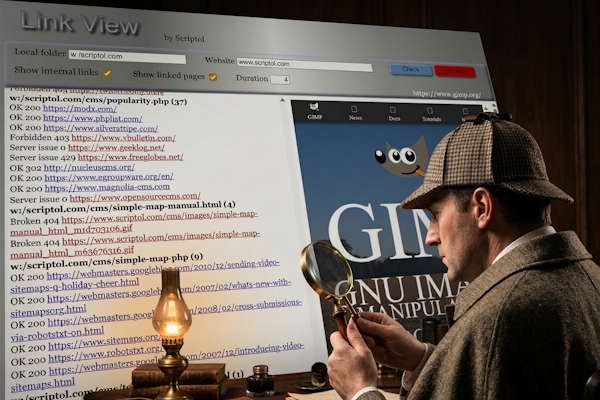
This software with a graphical interface checks the validity of links on your web pages and displays the linked pages.
Free graphical user interface software. Source code on GitHub on the Scriptol page.
Requires Node.js and the a browser to be installed.
Tested on Windows. Designed to also work on Linux and macOS.
Why test outbound links?
The web evolves, pages disappear, and broken links degrade your visitors' experience, giving the impression that the site is abandoned. Search engines also use links as a ranking factor for your site.
Even if a link returns a 200 code indicating that it is perfectly valid, this can happen... The site in question may have ceased publication, and the domain may be abandoned. It will immediately be picked up by someone using a WHOIS scan tool to display content that is sometimes undesirable or malicious. Your visitors will then be redirected to this site without your knowledge, even though they were expecting a source of information. Linked pages can also become overloaded with advertisements, which has the same negative effect on visitors.
By automatically displaying the linked pages from your site one after the other, Link View allows you to check where you are directing your visitors.
How often should you check your outbound links?
Depending on the nature of your site, Experience suggests the following frequencies:
- Monthly if it has editorial content or is an e-commerce store. In the latter case, checking internal links is also crucial.
- Every 3 months for a showcase website, linking to content that changes little.
- Every 6 months for an encyclopedia website referencing authoritative pages.
Using Link View
Link View is designed for static websites and works on a local image of the site. It crawls the content page by page, extracts the URLs of outgoing links, tests the returned HTTP code, and if you have selected the option and the link is valid, displays the page.
First, you must provide the path to the root of the local image, such as c:/example.com.
The software needs the website URL, which you provide in the second input field in the format "https://example.com". You can omit the Protocol if it's HTTPS.
You have three options to check:
- Show internal links: To display linked pages on the site itself. The links are always tested; displaying them is optional.
- Display link page: Displays linked pages if the return code is OK or if there's a redirect.
- Duration: Display time in seconds.
Click the Check button to start the analysis.
You can stop the display with the Stop button and restart it with the Resume button.
The left panel displays broken links and, optionally, valid links with HTTP 200 status codes if you have chosen to display the corresponding page in the right panel. You can click on the links to view the content outside the application in a browser.
Browser selection
The program launches the Chrome browser by default to display the HTML interface. You can use another browser if it is configured as the default browser on your system.
To do this, replace the server.listen section in the file server.js using the following code:
server.listen(3000, () => {
  console.log("Serveur démarré sur http://localhost:3000");
  const url = "http://localhost:3000";
  switch (process.platform) {
    case "win32":
     exec(`start "" "${url}"`);
     break;
    case "darwin":
     exec(`open "${url}"`);
     break;
    case "linux":
     exec(`xdg-open "${url}"`);
     break;
  }
});
Download and installation
LinkView is available for download on GitHub on the Scriptol page.
Node.js must be installed. WebSocket is included in the archive, but if it doesn't work on your system, install it with this command from the linkview directory:
npm install websocketYou can start from the command line by going to the LinkView directory and typing:
node server.jsOr create an icon on the desktop. For Windows, this will be:
Target:
C:\Program Files\nodejs\node.exe" c:\linkview\server.jsStart in:
c:\linkview\Note:
- The page may not display even though the HTTP status code is 200 and valid, because some websites block access from outside a browser. In this case, you can click the corresponding link in the left-hand window to view it in a browser. The same applies when the server returns a 403 or 406 code because the request did not originate from a browser. If curl is installed on your computer, it will be able to access 403 code pages.